Marketing Automation

Build event-driven journeys, date-based reminders and follow-up workflows. Connect customer actions to messages, conditions, rewards and team tasks from one visual automation workspace.

Turn customer events into useful next steps

Connect events, messages, conditions and follow-up in a visual workflow.

Yournotify customer logos

Build workflows for communication, service and growth

Start with an event or a date

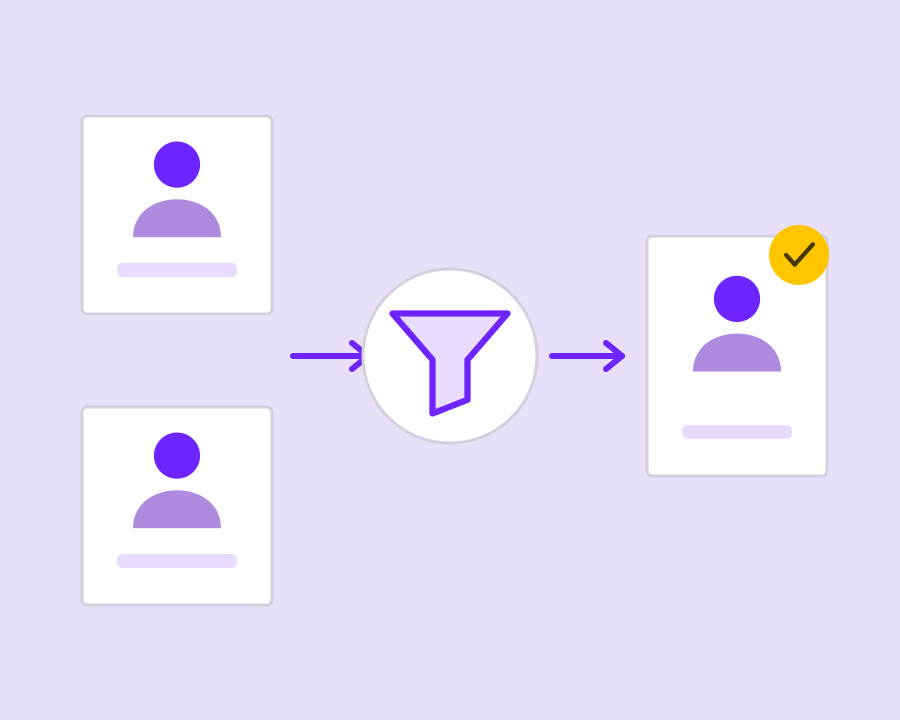
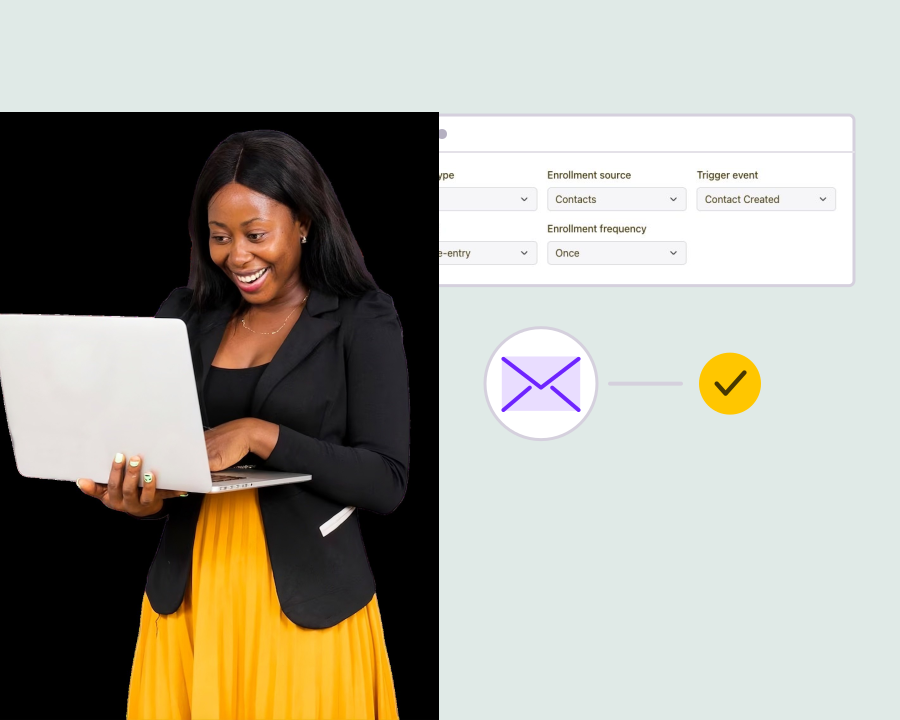
Choose what starts the workflow: a contact, form, list, campaign or connected webhook event. Create date-based reminders for birthdays, renewals and other milestones, or set a calendar schedule for recurring communication. Select the source and audience before connecting the next step.
Connect messages, waits and actions

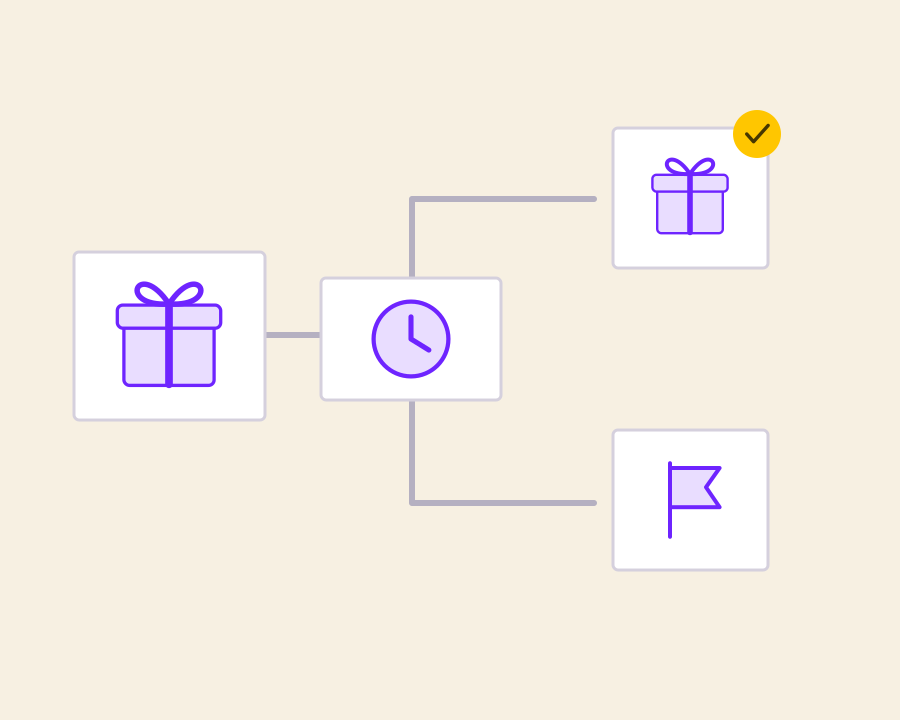
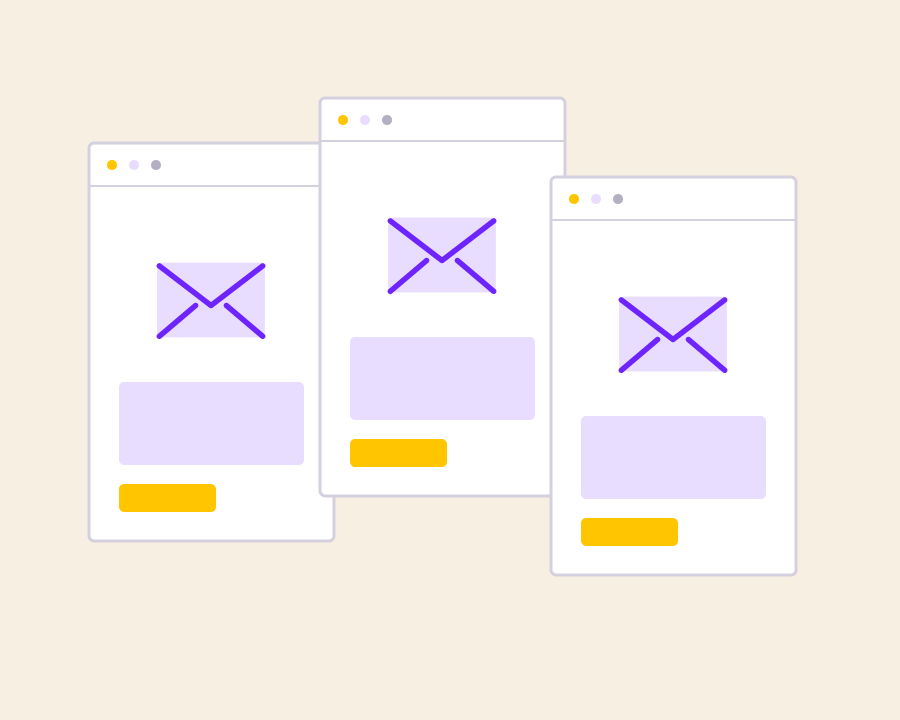
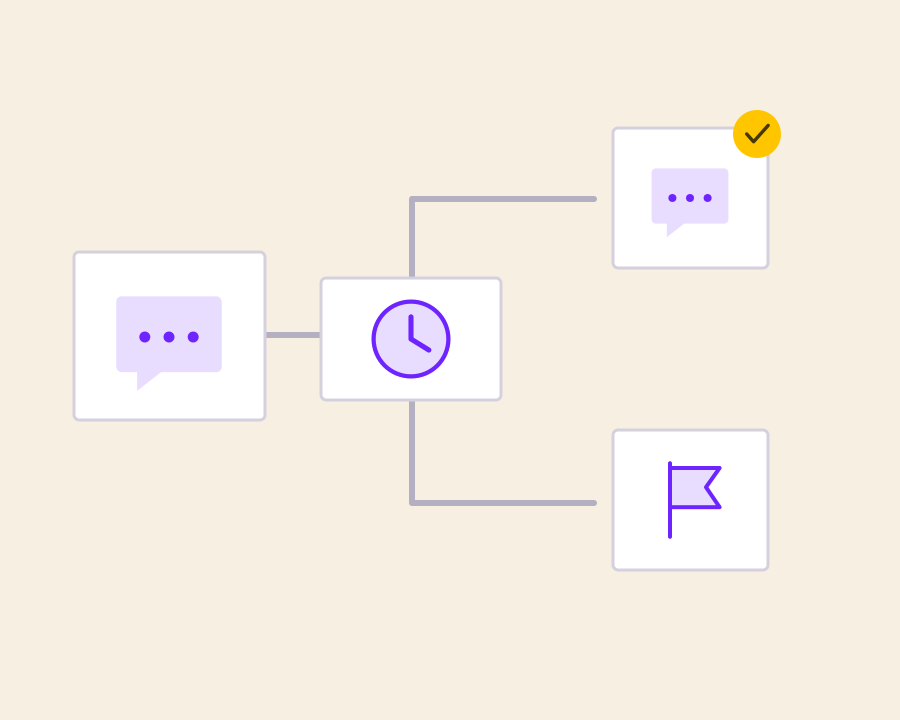
Build a sequence of steps for Email, SMS, WhatsApp and other supported campaign actions. Add a wait between messages, connect an Inbox follow-up or trigger a reward. Keep each action connected to the customer event that makes it relevant.

Choose a different path when context changes

Use conditions and branches to send contacts down different paths. For example, follow up differently after a customer responds or meets an attribute rule. Set the next step for each branch so the workflow continues with a clear purpose.

Control enrolment and repeat activity

Select the lists and audience filters for the workflow, then configure re-entry and frequency controls. Set reminder timing and timezone for date-driven communication so a renewal, anniversary or scheduled update follows the intended calendar.

View product

Connect workflows to your wider platform

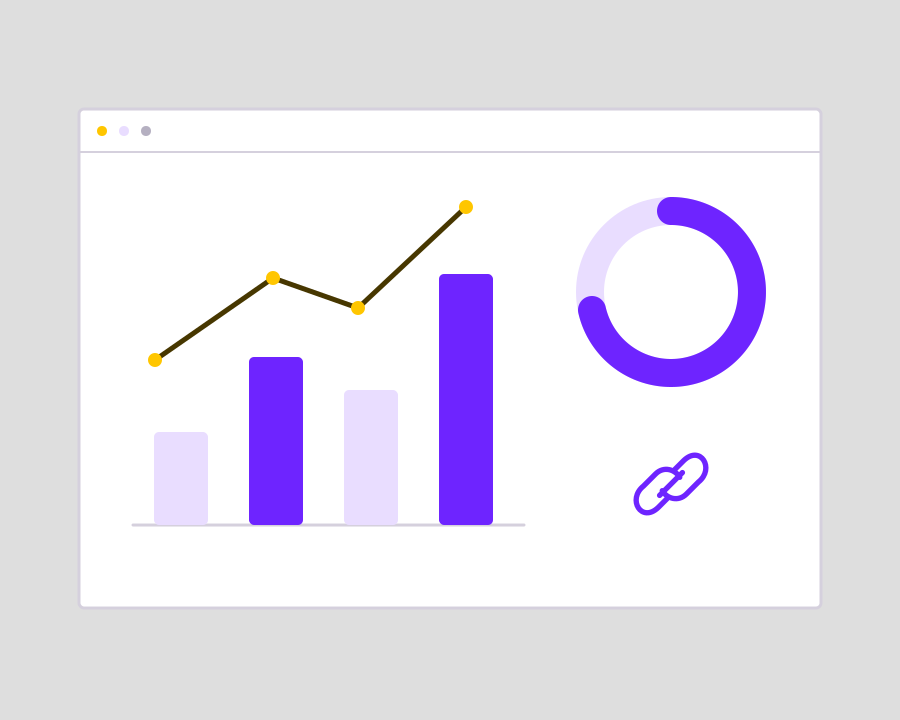
Use webhook actions and connected workflow steps to pass information between Yournotify and your systems. Keep customer communication, rewards and internal follow-up in the same sequence instead of relying on separate manual handoffs.

Review the workflow before activating it

Keep an automation inactive while configuring its sender, content, conditions and timing. Validate the workflow and use the available date or threshold previews before switching it to Active. Pause it when your process or message needs to change.

Put Automation to work

Practical ways to connect this feature to your organisation’s daily work.

Customer onboarding

Welcome a new signup, wait for the next step and send useful guidance.

Service reminders

Plan appointments, anniversaries and renewal messages around dates.

Team follow-up

Connect replies, tasks and rewards to customer events.

Frequently asked questions

No. Use workflows for onboarding, appointment and renewal reminders, service updates, customer follow-up and rewards, alongside promotional campaigns.

Yes. Choose a form event and its source, then connect the messages and actions that should follow the submission.

Yes. Date-based reminders use the selected contact date field, recurrence, send time and timezone. Review the date preview before activating the workflow.

Yes. Keep it Inactive while editing and select Active when it is ready to run.

Get started with automation.

Bring your contact data and communication into one connected workspace.

Get Started