
Customer conversations, together in one workspace

Manage customer messages across WhatsApp, Facebook, Instagram, TikTok and WebChat. Give your team a shared place to respond, guide repeat enquiries with Agents and keep a clear route to a human when the conversation needs one.

Conversations and Agents

Guide routine enquiries and bring your team into the conversation when customers need more help.

Yournotify customer logos

Turn incoming questions into useful next steps.

Connect the channels customers already use, organize their messages and respond with the context your team needs. Add guided Agent flows for common questions and handoff points for personal follow-up.

One inbox for customer replies

Bring WebChat, WhatsApp, Instagram, Facebook and eligible TikTok messages into one workspace. Switch between channels, search the inbox and review the latest message and conversation status, so your team can respond with the customer’s history in view.

Find messages that need a reply

Use keyword search, channel filters and Needs reply to find messages waiting for attention. Review conversation status and available customer details before opening a thread, so everyday enquiries remain visible as your inbox grows.

Guide enquiries with Conversation Agents

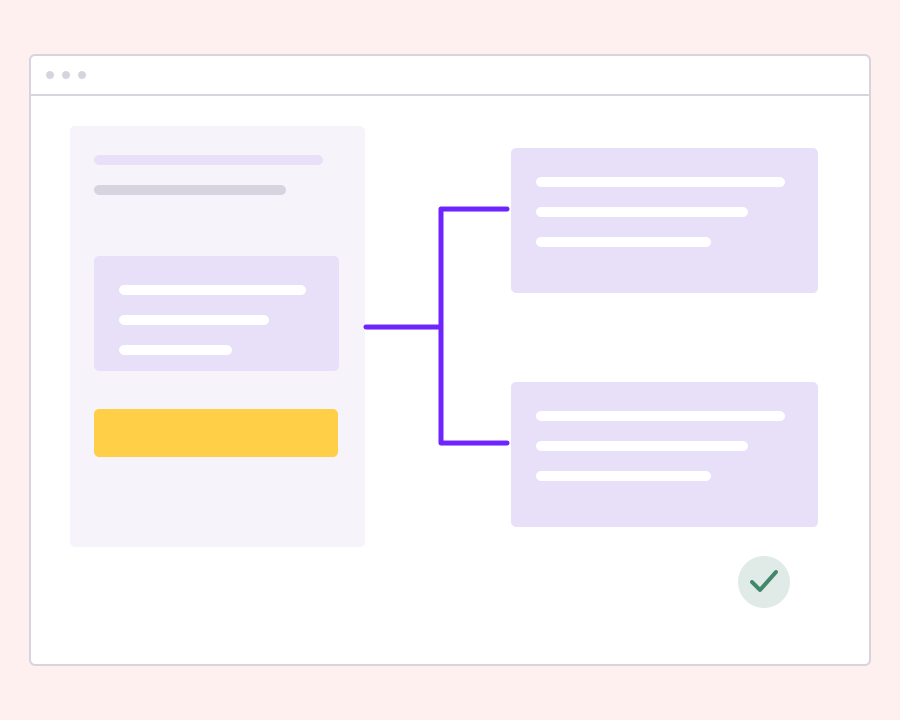
Build a guided response flow using questions, predefined answers and follow-up messages. Choose a supported channel and connected account or widget, then decide how incoming messages start the agent. Each answer can lead to another step, a human handoff or a completed flow.

Preview every answer path before going live

Keep an agent in Draft while you write the messages and connect each answer to its next step. Use the built-in preview to try the conversation, restart it and check the customer’s options. Switch to Active when ready, or pause the agent when you need to make changes.

Keep a clear route back to your team

Customers can ask to speak to a human instead of continuing the answer flow. Automated replies pause for a handoff or team takeover, with your own handoff message setting expectations. Your team can review the conversation and explicitly resume the agent when appropriate.

Keep the conversation together

Read incoming messages and team replies in chronological order, with timestamps and available media in the same thread. Keep the history close when a colleague takes over or a customer returns with another question about the same request.

Reply with text and media

Answer customers with text and supported media from your workspace. Use the conversation thread to review incoming attachments and add relevant files to your reply, with available attachment types and messaging windows governed by the connected channel.

Control team access

Give teammates the conversation permissions they need to view, send, edit or delete. Keep customer messaging inside the shared workspace, with access controlled through your team settings rather than asking everyone to work from separate personal inboxes.

Close completed conversations

Close a thread when the exchange is finished and block unwanted conversations when needed. A new customer message can reopen a completed exchange, helping your team continue the conversation while keeping the current status visible in the inbox.

Support customers from the first question.

Sales enquiries

Use guided answers to help customers choose the information they need, then bring your team into the conversation for questions that need a personal response.

Customer support

Build clear paths through common questions, review message history and supported attachments, and let customers ask for a human when they need more help.

Shared team access

Give colleagues the appropriate conversation permissions. Use inbox filters and agent handoff controls to keep routine replies and human follow-up connected.

Frequently asked questions

Setup, use cases and practical answers for your team.

Connect WhatsApp, Facebook, Instagram, TikTok and WebChat conversations in Yournotify. Each connected channel gives your team a way to review and respond to its customer messages.

Agents follow the steps you configure: ask a question with answer choices, send information, route to another step, hand the exchange to a human or end the flow. Use Preview to check the customer’s path before activating it.

Yes. Select the channel and sender or widget, then choose the starting condition and first step shown in the Agent builder. This lets you fit the flow to the customer entry point.

Yes. Add a Talk to a human step and a handoff message to the Agent. Route questions that need personal attention to that step so customers have a clear way to reach your team.

Set up WebChat in Yournotify and place the supplied widget embed on your website. Test the published widget and confirm that incoming messages appear in the Conversations workspace.

Read setup guides and more FAQs →   Explore API documentation →

Bring conversations and Agents into one workspace.

Connect your supported channels, build your first guided response flow and keep your team close to every customer conversation.

Get Started