Promotional Push Notification Campaigns

Create short push campaigns that bring opted-in app or website users back to a relevant offer. Choose the audience, write the title and message, connect a destination and review the supported delivery results for your campaign.

Give customers a useful reason to return

Keep promotional push focused on a clear message and destination, with the device setup and audience needed to deliver it.

Yournotify customer logos

Give customers a useful reason to return.

Keep promotional push focused on a clear message and destination, with the device setup and audience needed to deliver it.

Confirm the audience has reachable devices

Choose the campaign list and review the active device setup associated with the workspace. A contact record alone is not a push destination; the supported device registration and notification permission must be in place for the intended audience.
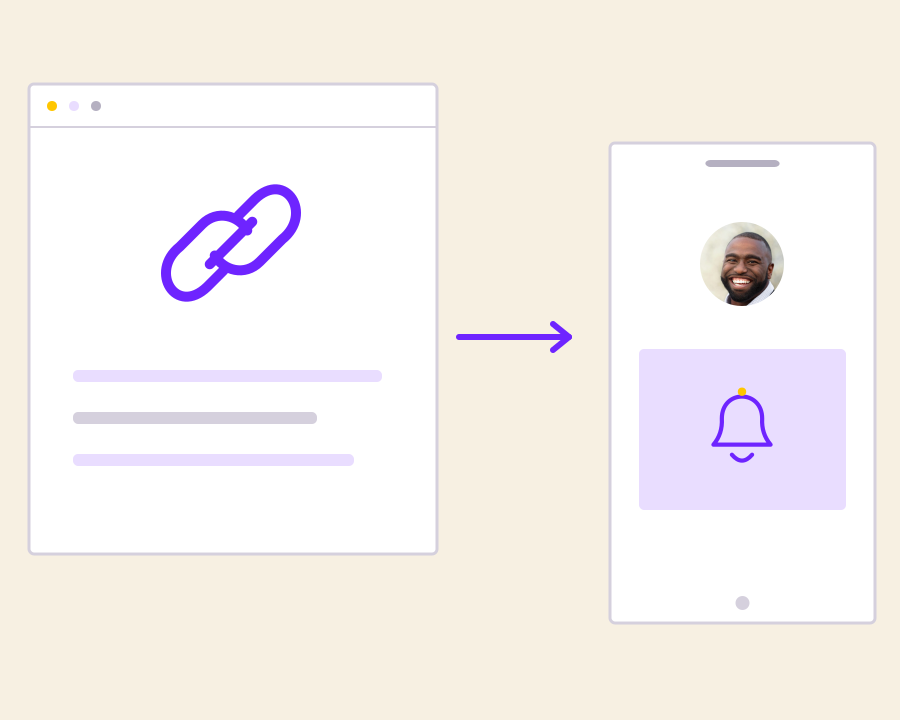
Write for a small notification space

Prepare a clear title and concise message around the offer or announcement. Keep the wording understandable at a glance and avoid competing calls to action, so the customer can decide whether the notification is relevant before opening it.

Connect the tap to a relevant destination

Set the destination URL to the page that continues the notification’s message. Check that the offer, product or announcement is ready there, giving the customer a coherent next step after they choose to open the push campaign.

Review the campaign’s delivery context

Use the available campaign reporting to inspect the outcome of the send and investigate device or delivery issues. Compare the result with the campaign’s purpose before changing the audience or preparing another notification for the same customer group.

Get started with Promotional Push Notification Campaigns.

Choose an audience with device access

Review the list and the active push configuration before preparing a campaign.

Keep the message focused

Use a clear title, brief content and one relevant destination.

Improve the next push campaign

Use available delivery context and the customer journey to refine future notifications.

Frequently asked questions

Setup and everyday use of Promotional Push Notification Campaigns.

Push delivery needs the supported device registration and notification permission. A contact detail by itself is not a push destination.

The push campaign form includes a destination URL so the notification can direct the customer to the relevant next page.

Push uses a supported notification delivery channel. In-app messages appear within the configured product experience while the user is there.

Read setup guides and more FAQs →   Explore API documentation →

Improve the next push campaign.

Create short push campaigns that bring opted-in app or website users back to a relevant offer. Choose the audience, write the title and message, connect a destination and review the supported delivery results for your campaign.

Get Started