Transactional Push Notifications for Apps

Connect push notifications to customer and product events that need a timely update. Prepare a concise message, identify the supported recipient device and keep the notification tied to the account, order or service action that produced it.

Turn a product event into a useful notification

Keep service push specific to the customer action, with a clear destination and the device context needed for delivery.

Yournotify customer logos

Turn a product event into a useful notification.

Keep service push specific to the customer action, with a clear destination and the device context needed for delivery.

Identify the event that needs attention

Choose the account change, order update, reminder or service event that should produce a notification. Keep the message tied to that action so the customer understands why it arrived and can distinguish it from a general promotional campaign.
Resolve the supported recipient device

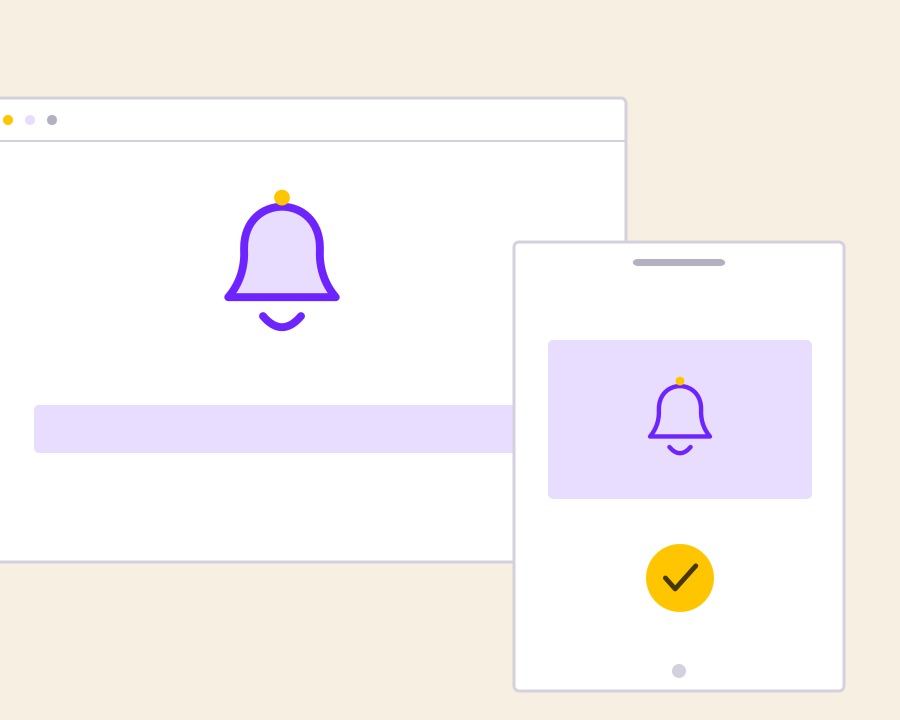
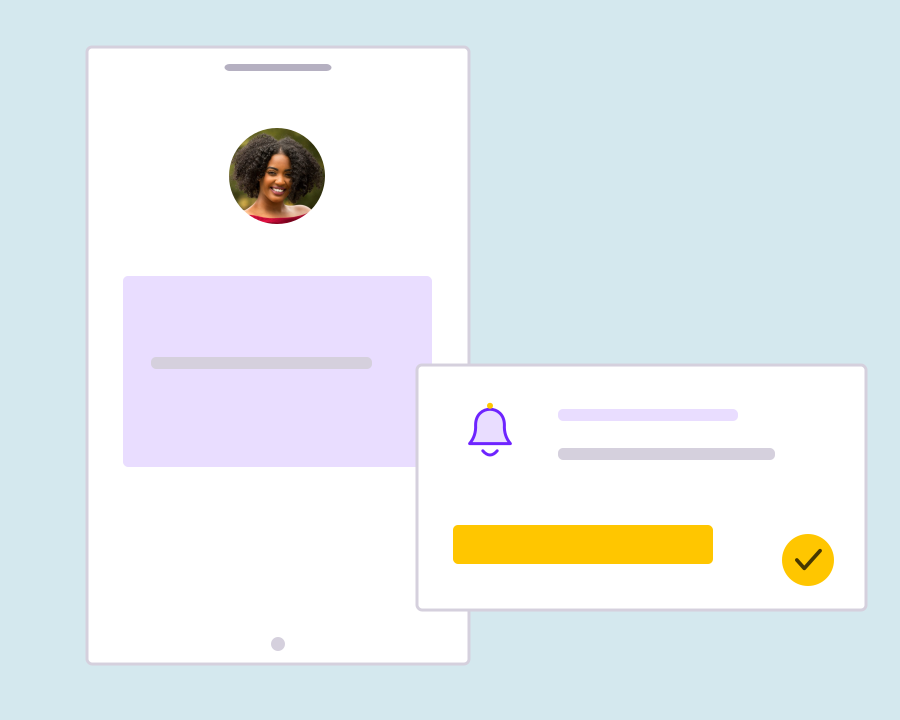
Connect the event’s customer to the supported push registration available in your setup. Check device access and notification permission before relying on the alert, since an application event does not create a reachable notification destination on its own.

Make the update actionable

Use a short title and message that explain the change and point to the relevant destination. Keep sensitive or unnecessary details out of the notification itself, letting the customer review the full context inside the appropriate product experience.

Keep notification outcomes with the event

Use the available sending and delivery context when reviewing a missing service notification. Keeping that information alongside the originating event helps the team investigate whether the issue relates to the application workflow, recipient setup or notification delivery.

Get started with Transactional Push Notifications for Apps.

Choose the service event

Define when the notification should be created and what the customer needs to know.

Check the delivery context

Make sure the intended customer has a supported push registration and appropriate permission.

Keep product updates understandable

Connect each notification to the action and destination that help the customer respond.

Frequently asked questions

Setup and everyday use of Transactional Push Notifications for Apps.

Use the configured push integration to connect supported product events to the appropriate recipient and notification content.

No. Supported device registration, notification permission and delivery conditions still affect the result.

Keep the notification concise and use a relevant destination for the full account or service context.

Read setup guides and more FAQs →   Explore API documentation →

Keep product updates understandable.

Connect push notifications to customer and product events that need a timely update. Prepare a concise message, identify the supported recipient device and keep the notification tied to the account, order or service action that produced it.

Get Started