WhatsApp Business API for updates and follow-up

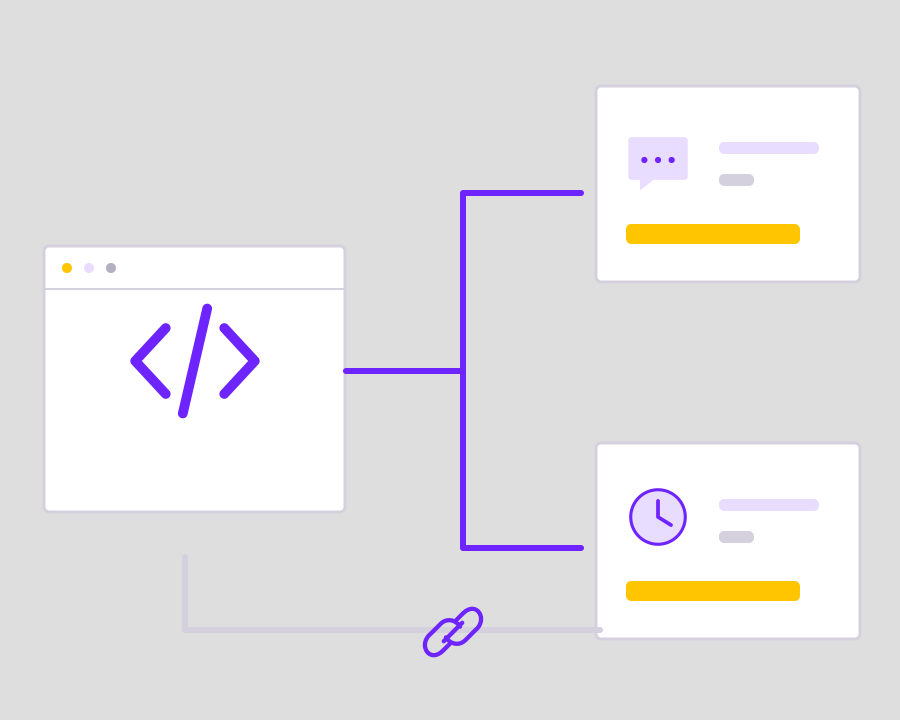
Connect your application to WhatsApp campaigns and customer updates in Nigeria, Kenya and across Africa. Use approved templates, map customer details into each message and manage connected replies with your team.

Connect approved WhatsApp messages to your app

Build the integration around the configured sender, the template’s expected content and the event that should produce a customer message.

Yournotify customer logos

Connect the customer event to a useful WhatsApp message.

Use an approved template for the message you want to send, populate its variables and follow the outcome. Bring application-triggered notifications and customer conversations into a coordinated workflow.

Connect the configured WhatsApp sender

Use the account’s WhatsApp connection and the access required by the documented API workflow. Verify the sending configuration before integrating customer-facing actions so permission or account setup issues can be resolved without relying on an assumed successful message.
Build a template-aware request

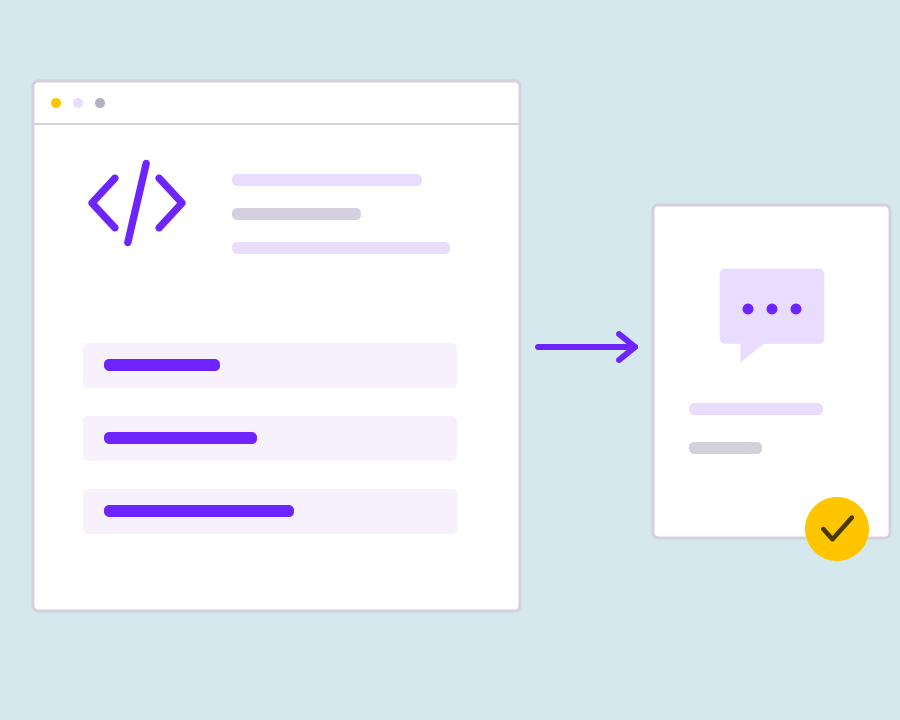
Choose the approved template for the message purpose and map the required values from your application data. Keep the recipient, variables and supported message components explicit so the request produces an understandable update for the intended customer.

Separate transactional and campaign flows

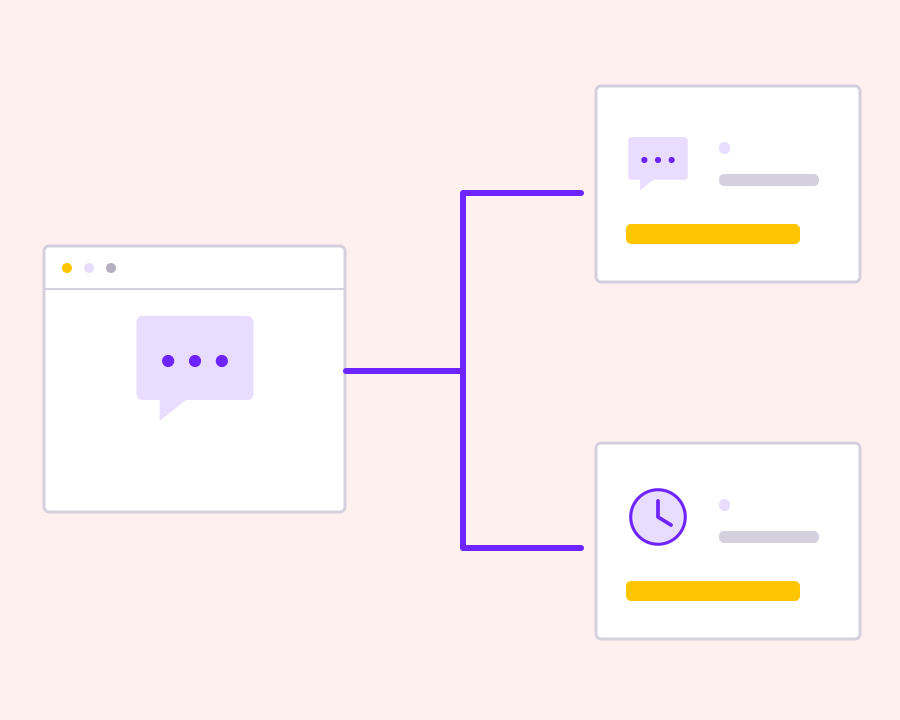
Use immediate explicit-recipient requests for transactional updates and the appropriate promotional workflow for audience campaigns. Keeping that distinction in the integration helps your application handle message purpose, audience selection and scheduling without mixing incompatible sending requirements.

Use responses and delivery context

Review the API response and retain useful sending references alongside the application event. Use available reporting and documented event options for later review, with explicit handling for validation failures, sender problems or unsuccessful delivery instead of silent automatic retries.

Get started with WhatsApp Business API Platform.

Prepare sender and template access

Confirm that the configured connection and intended template can be used by the integration.

Map the customer event

Connect application data to the recipient and template content expected by the request.

Keep WhatsApp sending reviewable

Retain response and delivery context so the team can investigate a specific customer message.

Frequently asked questions

Setup, use cases and practical answers for your team.

Connect order updates, reminders, account notifications and relevant marketing campaigns to your application. Use the configured WhatsApp sender and the approved template that matches the purpose of the message.

Map your customer or event data to the variables and components in the approved template. Check the required values, media and buttons against the actual template before submitting the request.

Business-initiated campaign messages use approved templates. Create the intended template, complete approval and choose that version in your campaign or API workflow.

Yes. Connect the WhatsApp channel to Conversations so your team can review and handle inbound messages. Campaigns manage the outbound send; Conversations supports the resulting customer exchange.

Read setup guides and more FAQs →   Explore API documentation →

Keep WhatsApp sending reviewable.

Connect WhatsApp messaging to application events with approved templates, mapped variables and explicit request handling. Keep sender access, customer permission and delivery context in view so your integration can support a reliable operational workflow.

Get Started