Prepare a connected WhatsApp sender, an approved message template and the audience you want to reach.
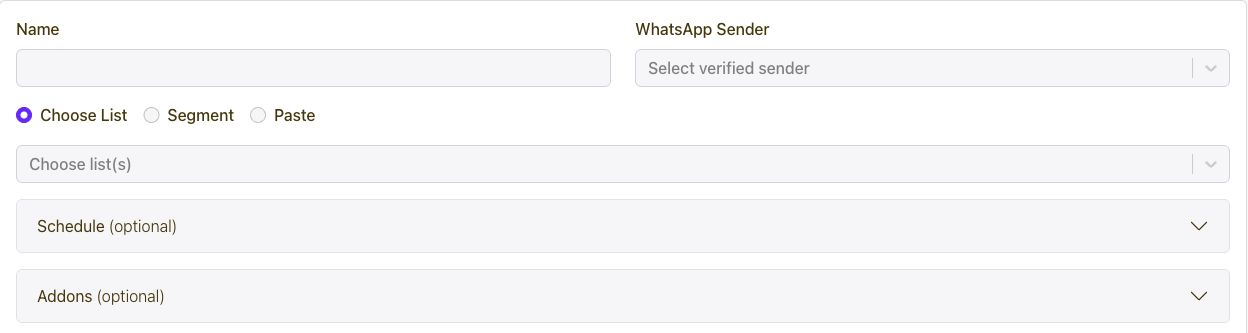
- Open WhatsApp in the dashboard and create a campaign.
- Choose the sender and approved template.
- Map template variables to the customer details required by the message.
- Select the audience and review any media or button content.
- Review the campaign, then save or submit with the intended timing.
Templates provide the approved structure for business-initiated WhatsApp messages. They let you reuse a message format while adding customer-specific values such as an order number or appointment time.
Create a template for the purpose of your message, complete the approval process and select the approved version in your campaign. Keep its variables and content aligned with that purpose.
Yes. Use transactional WhatsApp messaging for relevant updates such as order confirmations, appointment reminders and service notifications. Connect the customer event to the right approved template and recipient.
The WhatsApp API can link your application workflow to the send. Your team can then review the campaign and follow up through connected customer conversations.
Connected WhatsApp conversations let your team review inbound messages and respond in the Conversations workspace. The campaign delivers the outbound message, while Conversations gives the team a place to manage the resulting exchange.
Set up the WhatsApp channel and team access so the right people can see and handle customer replies.
Yes. Use the WhatsApp API with your configured sender and approved template. Map the template components and customer data to the request, then track the returned campaign and delivery information.
Start with the exact template you plan to use and test the variable mapping before scaling the workflow.