Forms
Create a form for the information you want to collect and choose where the resulting contacts belong.
- Open Forms and select Create.
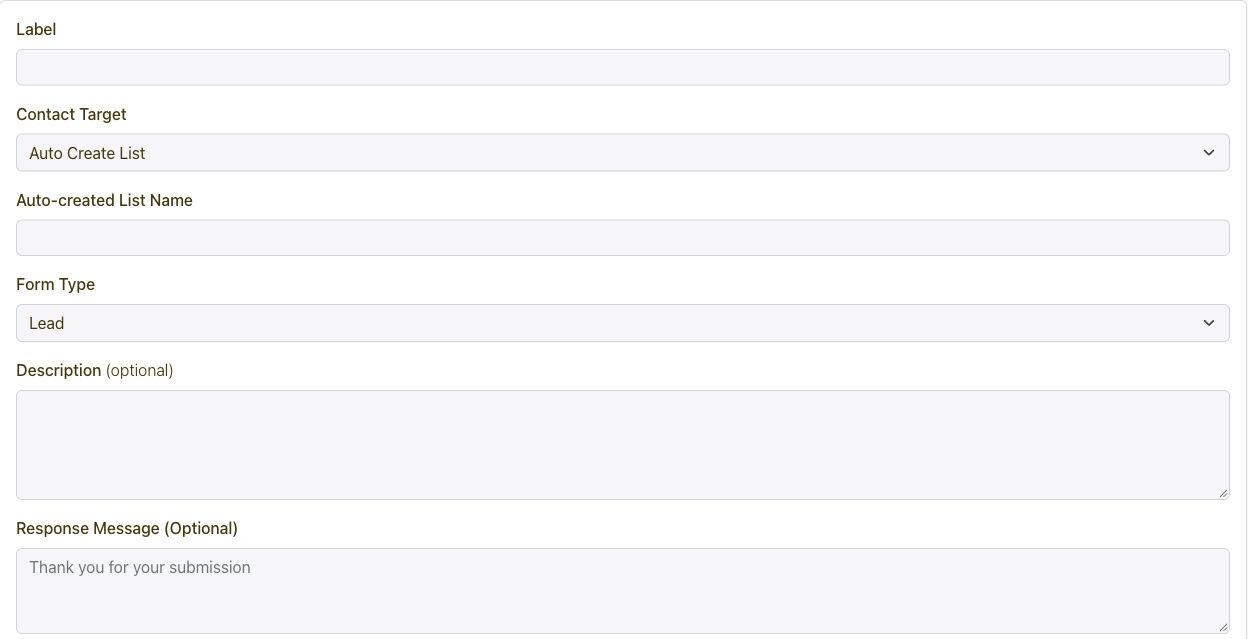
- Enter the label and choose Auto Create List or Use Existing List under Contact Target.
- Select the form type that fits the experience and add a short description.
- Configure the form fields and the response message or redirect.
- Save the form and test a submission before sharing it.
Collect the fields your team needs to act on the response. A newsletter form may need a name and email; an enquiry form may also need a telephone number, company and message.
Set required fields deliberately and map custom answers to consistent contact attributes. Keep the form short enough for the customer to complete comfortably.
Create and test the form, then use the share or embed option provided for that form. Add the supplied embed to the relevant page on your website.
Publish the page and complete a sample submission to confirm that the form displays correctly and the response reaches the intended contact list.
Yes. Each form can use its own contact target. Choose an existing list or create a new list as part of form setup.
For example, route newsletter signups to one list and partner applications to another. Use mapped attributes to retain more specific information, such as the selected partner programme.
Choose the form that matches the page’s purpose, then add its embed to the page content. Keep the offer, form fields and confirmation message consistent.
Test the published page on desktop and mobile, and confirm that a submission reaches the intended list with the expected fields.