SMS Marketing
Create a bulk SMS campaign to send a clear, concise message to a saved audience or a selected set of telephone contacts.
- Open SMS and select Create.
- Enter the campaign name and choose an approved Sender ID.
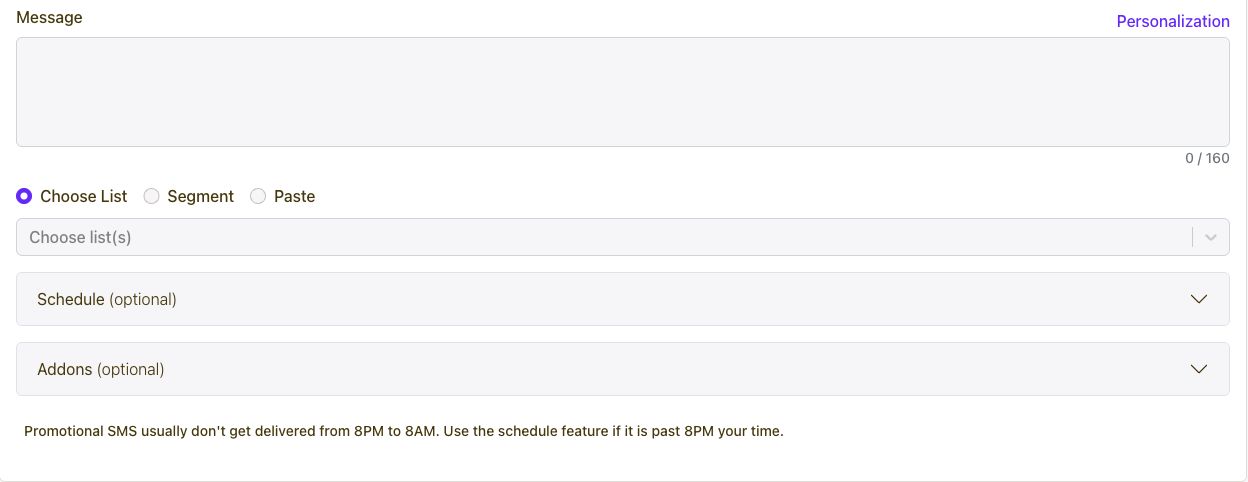
- Write the message and use Personalization if you need contact fields.
- Choose a list or segment, or paste the intended recipients.
- Review the message count and optional schedule, then save or submit.
Yes. Connect your application to the SMS API to deliver one-time passcodes for actions such as signup, login or account recovery. Your application creates and checks the code, while Yournotify sends the message using your configured transactional sender.
Keep the message short, include the purpose and expiry information, and review delivery status so your support team can investigate a delayed message.
Use your API key on your server to authenticate requests and send messages through the documented SMS campaign endpoint. Prepare your sender, message and recipient data before making the request.
The SMS documentation includes required fields, example payloads and responses. Use its sandbox option to validate the request structure before moving to live delivery.
Use the current SMS unit price on the pricing page and multiply it by the billable message units in your campaign. For example, 1,000 recipients receiving one SMS unit each at ₦7 per unit gives a message cost of ₦7,000.
Message length and character encoding affect the number of units. Review the composer counter and your campaign settings before sending so the message and budget stay aligned.
SMS messages have a character capacity per segment. Longer messages are split into multiple segments, and Unicode characters such as some symbols or emoji can reduce the number of characters that fit in each segment.
Use the composer counter or the SMS calculator while writing. Shorten repeated information and use a clear destination link when you need customers to read more.
A transactional SMS sender is used for service-related messages such as verification codes, receipts, payment updates and account notifications. It helps match the sender and route to the purpose of the message.
Set up your sender for the intended use and select it in your campaign or API request. Keep promotional offers in the appropriate marketing campaign workflow.
Open the campaign report and review the delivery status or failure details for the affected recipients. Common checks include the telephone format, sender readiness, message content, recipient availability and the destination route.
For promotional SMS, recipient preferences and permitted sending hours also matter. Use the campaign ID and the relevant report when contacting support so the team can investigate the actual send.
Prepare the sender, message and audience, then expand Schedule in the SMS composer. Choose the intended send date and time, review the settings and submit the scheduled campaign.
The composer also highlights promotional sending-hour guidance. Scheduling helps you prepare in advance and reach customers at an appropriate time.
Open the channel campaign list and use its type filter to narrow the records to the category you need, such as promotional or transactional. Combine the available period and search controls to find the campaign, then open its details or analytics.
Open SMS, choose the campaign and view its analytics. Review the delivery totals and available recipient-level failure details to understand what happened to the send.
Use campaign filters to compare similar sends. Delivery reporting explains message delivery; use tagged links and your website analytics when you also want to measure visits and conversions.
Prepare the relevant attribute on your contact records, then use Personalization in the SMS composer to insert it into the message. Review the rendered text and message length using a representative contact before sending.
Select Personalization beside the SMS message field and choose the customer attribute you want to include. Make sure your audience has values for that field and review the completed message before launch.
Prepare a reusable SMS template under Templates, then select it in the SMS campaign workflow. Review the text, sender, audience and personalization for this particular send before submitting.
Prepare your audience segment under Segments. In the SMS composer, choose Segment and select the audience you need. Check that the contacts have valid telephone numbers, then review the sender, message and schedule.
Use Automations to connect a customer event or audience condition to an SMS follow-up. Prepare the transactional or promotional sender that fits the message, add the timing and test the route with the expected contact data.
Add UTM parameters to the destination URL so your website analytics can identify visits from the campaign. Use a consistent source, medium and campaign name across the links you want to compare.
For example, a link can use ?utm_source=yournotify&utm_medium=sms&utm_campaign=october_offer. If the URL already has query parameters, add the tags using &.
Open the final link and confirm that the destination loads correctly. Review website visits and conversions alongside the Yournotify campaign report.