Lead Generation Analytics

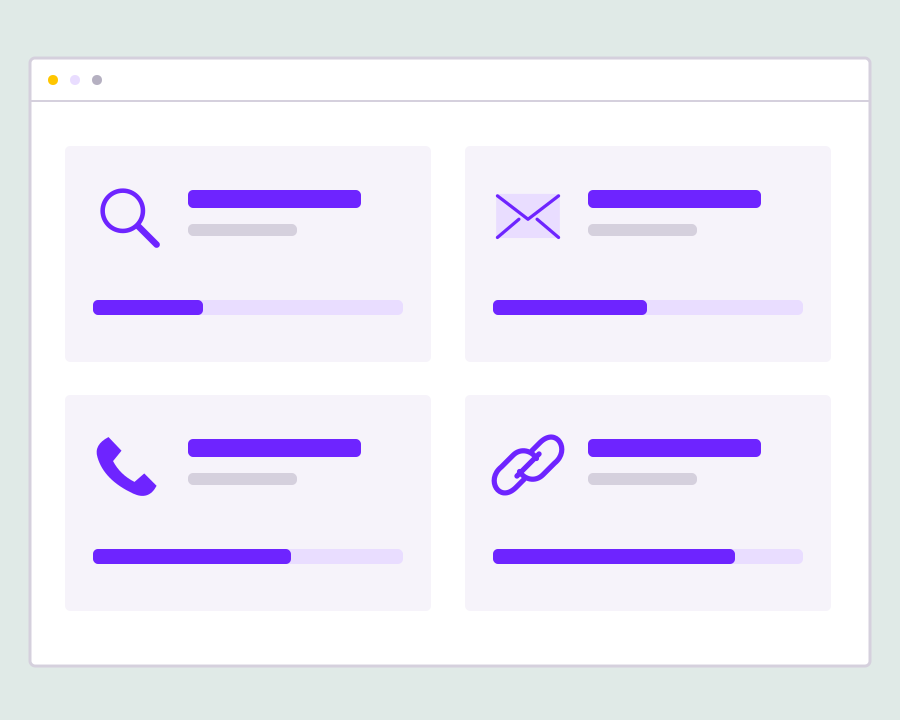
Review the results of each lead search with a clear view of total leads, available email and telephone matches, and contacts synced into your workspace. Use those measures to decide which searches need refinement before your next acquisition activity.

Understand the results behind each search

Move from a completed search to a practical review of contact coverage and sync progress. Each metric describes the results returned by that lead run.

Yournotify customer logos

Understand the results behind each search.

Move from a completed search to a practical review of contact coverage and sync progress. Each metric describes the results returned by that lead run.

See the size of each lead run

Open the Analytics tab for a named search to see how many leads were returned. Keep that total connected to the search you actually ran, so a broad audience search is not confused with the results of a more focused request.
Compare email and telephone coverage

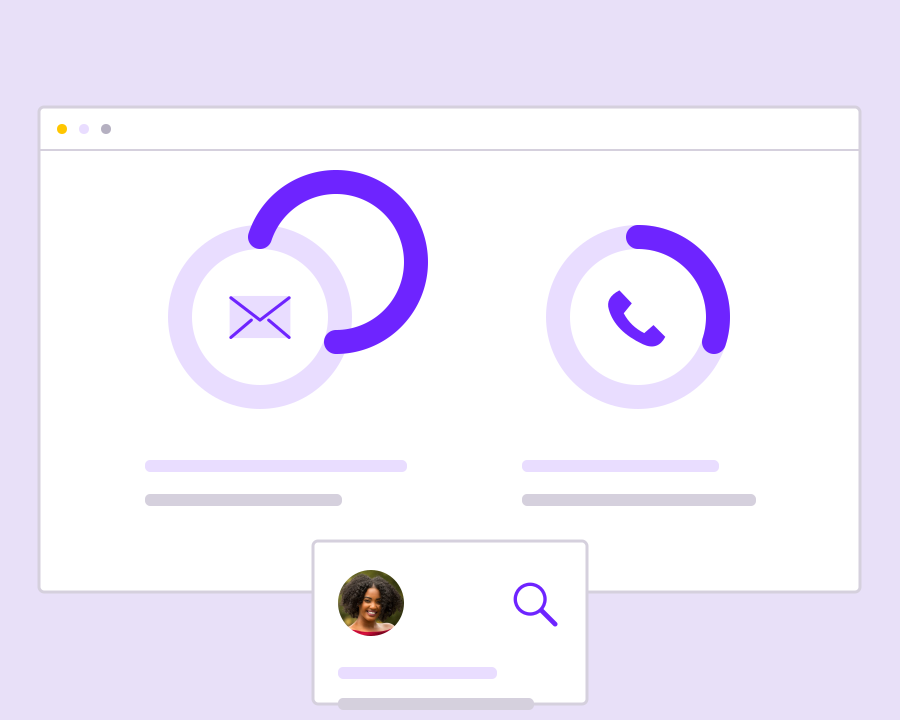
Review the number and percentage of results with an email address or telephone number. These measures help you understand which contact channels are represented in the returned data before you decide how the audience fits your planned follow-up.

Check which results became contacts

Use the synced contacts metric to see how many lead results are linked to contact records in Yournotify. Compare that count with the total results when checking whether the audience is ready for work in Contacts and Lists.

Inspect the people behind the totals

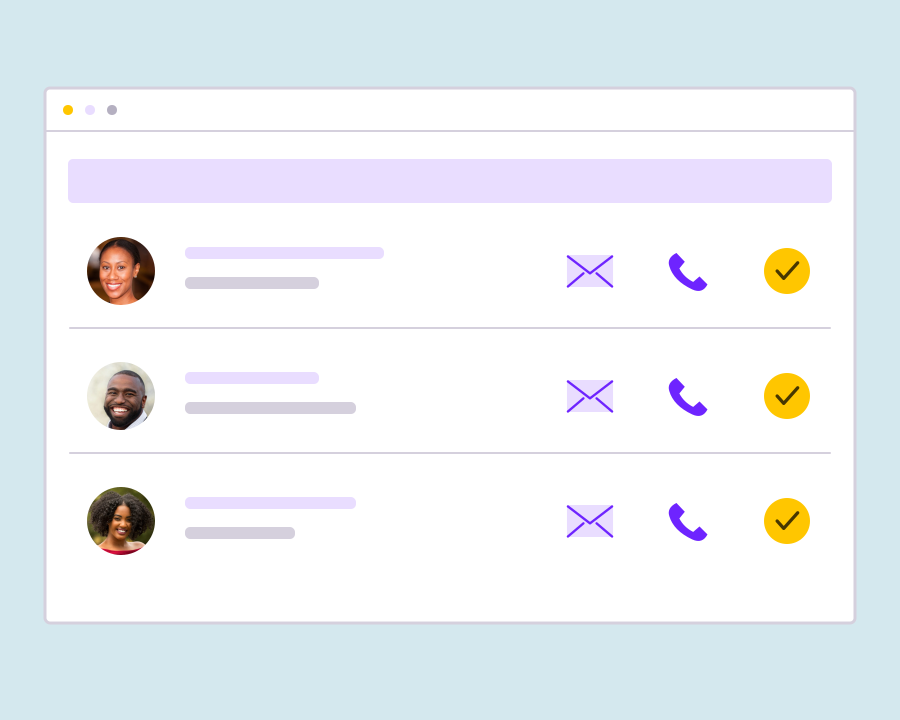
Switch from Analytics to Contacts to review names, professions, companies, locations and available contact details. Looking at individual records alongside the totals helps you judge relevance instead of treating every returned lead as an equally useful prospect.

Refine the next search with evidence

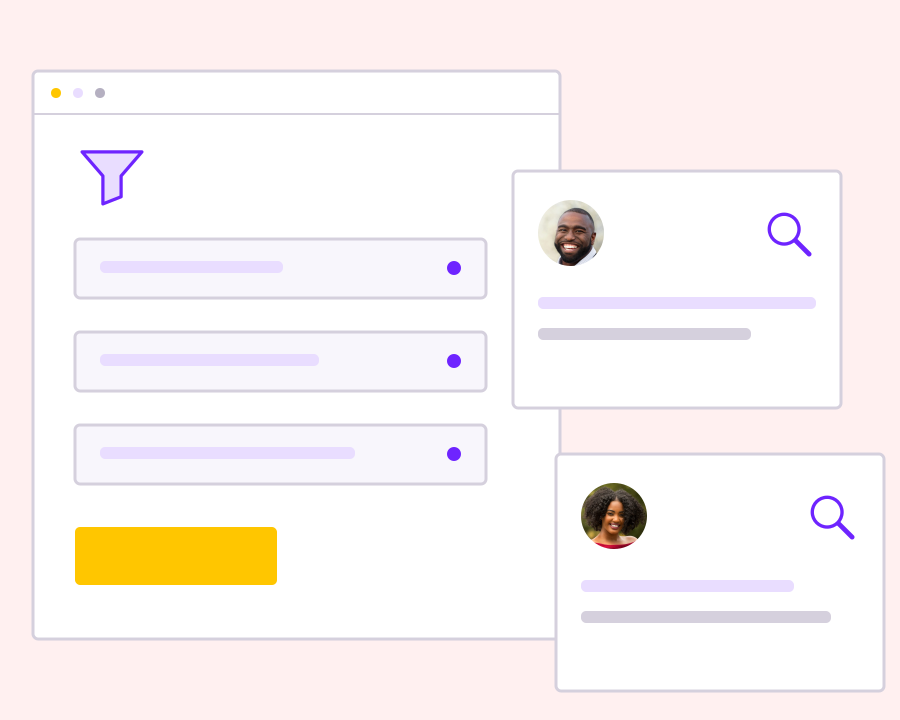
Use coverage and contact relevance to reconsider the filters for your next lead search. Narrow or adjust the audience when the returned records are a poor fit, and keep search-result measures separate from later campaign engagement or sales outcomes.

Get started with Lead Generation Analytics.

Review a named run

Start with a specific search so its results, contact coverage and sync count stay in the same context.

Compare the available channels

Use email and telephone match rates to understand contact availability, then inspect the individual records.

Build a more relevant audience

Apply what you learn to the next search and use permission-based follow-up for suitable contacts.

Frequently asked questions

Setup and everyday use of Lead Generation Analytics.

The lead report shows total leads, email matches, telephone matches and synced contacts. Match and sync percentages are calculated against the returned lead total.

No. A match describes available contact data. It does not guarantee delivery, permission to send, engagement or a commercial outcome.

Yes. Open the Contacts tab for the same run to inspect the returned records and follow linked contacts into their profiles.

Read setup guides and more FAQs →   Explore API documentation →

Build a more relevant audience.

Review the results of each lead search with a clear view of total leads, available email and telephone matches, and contacts synced into your workspace. Use those measures to decide which searches need refinement before your next acquisition activity.

Get Started