SMS for churches keeps members informed about service times, meetings and volunteer activities. Combine concise texts with clear Voice messages in Yournotify, using the right group and schedule for each update.
This guide explains how to use Yournotify SMS and Voice for those tasks. It covers audience organisation, sample scripts, scheduling, contact preferences and follow-up, with a practical workflow for administrators and volunteer teams.
Table of Contents
Match SMS for churches to the group and purpose
Start by identifying who actually needs the information. A volunteer roster, a registered programme group and the broader membership have different responsibilities. Sending every announcement to everyone can make important updates harder to notice.
| Group | Useful communication | Suitable starting format |
|---|---|---|
| Registered programme participants | Date, venue and preparation details | SMS with a clear information link |
| Volunteers | Confirmed reporting time and responsibility | SMS or a short planned Voice message |
| Members requesting audio updates | A concise spoken reminder | Voice, with an appropriate contact route |
| New members who requested follow-up | A welcome and relevant next step | The person’s preferred supported channel |
| Organising team | Changes requiring action | A targeted operational message |
Use contact groups based on participation and recorded preferences. Avoid inferring a person’s private beliefs, needs or circumstances from unrelated data. Keep confidential pastoral or personal matters in the organisation’s appropriate individual process.
A useful reminder example from YouVersion
YouVersion’s plan-notification guidance lets people turn reminders on or off for a selected Bible Plan. The useful communication principle is that reminders relate to something the person chose and remain adjustable.
Apply that principle to your organisation’s programme updates. Explain what people are signing up to receive, use the agreed channel and keep a practical way to change their preferences. This example concerns reminder design; your own SMS or Voice workflow should follow the process you configure in Yournotify.
Plan the communication sequence
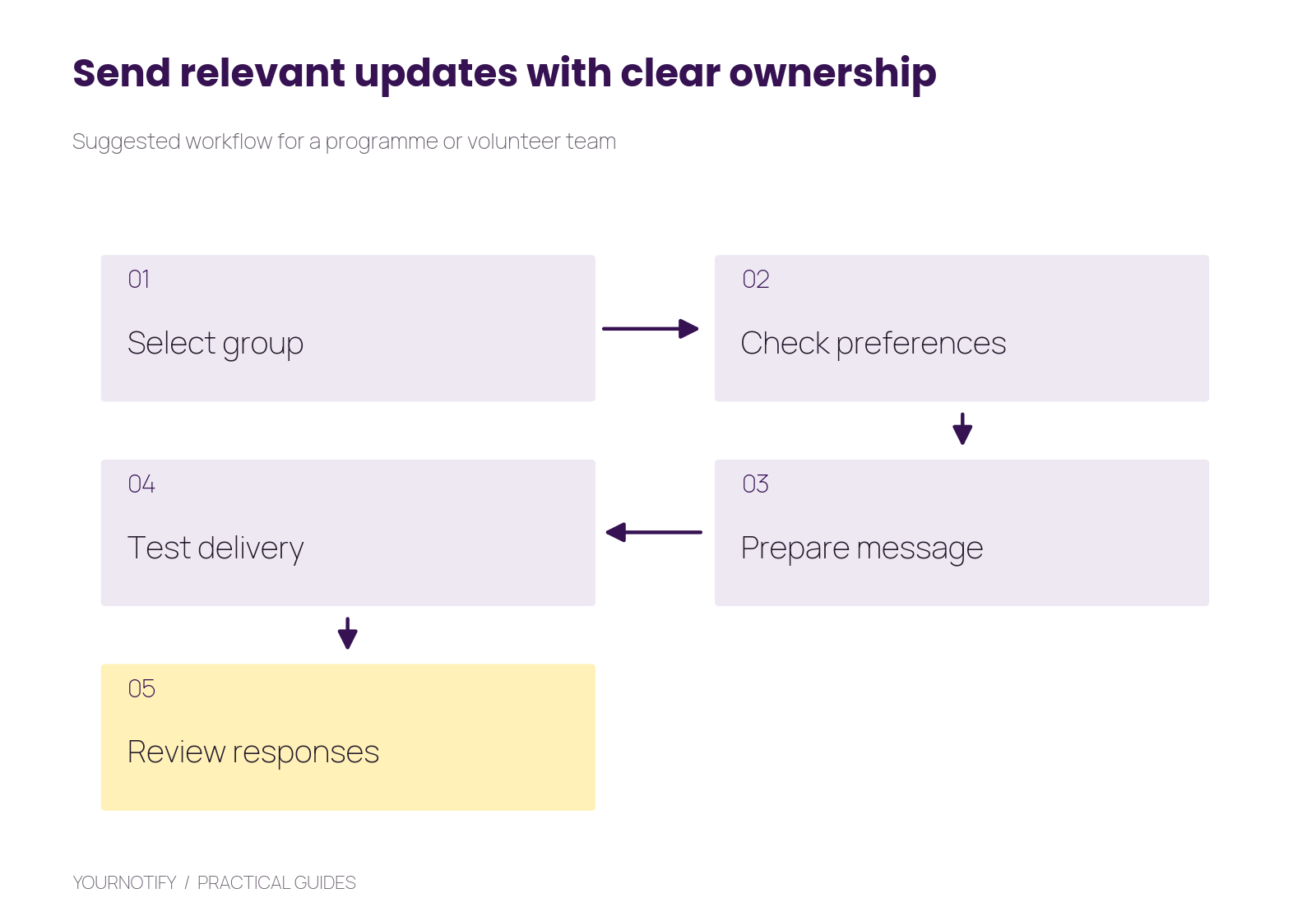
Suggested process: select the relevant group, check preferences, prepare a clear message, test the actual delivery and review responses or unresolved contact issues.
Use one shared calendar so different departments do not unknowingly send several reminders on the same day. An administrator should be able to see what the intended group has already received before approving another send.
Step 1: organise and review the contacts
First, create clearly named lists such as Community workshop registrants or Saturday volunteer team. Store only attributes needed for useful communication, such as programme, location, role and preferred channel.
Review telephone numbers with the people responsible for the group. Keep them in international format and investigate duplicates. A shared household number may need different treatment from two separate members who each want their own update.
Import a small sample into Yournotify Contacts, check field mapping and confirm the intended audience before importing the rest. Assign an owner for corrections and preference changes.
Keep the distinction between a stable list and a changing condition. A person can remain part of the organisation while no longer needing reminders for a programme that has ended.
Step 2: choose SMS or Voice deliberately
Next, sMS suits short information people may need to reread: a date, venue, arrival time or link. Voice suits a planned spoken message where that format helps the intended recipient. It should not become an automatic escalation simply because a person did not click a link.
| Decision | Choose SMS when… | Consider Voice when… |
|---|---|---|
| Information format | The recipient needs written details or a link | A short spoken explanation is useful |
| Recipient preference | The person prefers text updates | The person has requested or expects audio contact |
| Timing | The message can be read when convenient | The planned call time is appropriate |
| Follow-up | A page or contact route resolves questions | A clear spoken contact route or supported interactive flow is needed |
Do not treat either channel as the only emergency system. Where an organisation has urgent safeguarding or emergency procedures, follow those procedures and use messaging as appropriate support.
Step 3: write concise SMS messages
Then, use a recognisable approved sender and state the organisation, context, essential detail and action. The following examples use a fictional organisation.
Programme reminder
Example Community: Your skills workshop is Saturday at 10am, main hall. View the preparation details here: https://example.com/workshop
Volunteer briefing
Example Community: Registered Saturday volunteers should arrive at 8:30am for the team briefing. Please contact the coordinator if your availability has changed.
Time change
Example Community: Sunday’s registered team meeting now begins at 3pm. The venue is unchanged. Contact the coordinator if you need help with the new time.
Welcome
Thank you for joining the programme updates from Example Community. Your first session details are here: https://example.com/welcome. Contact us to change how you receive these updates.
Preview long names and URLs, then check the message-part estimate. Provide a real contact route if the sender cannot accept replies. For configuration and delivery checks, use the bulk SMS guide.
Step 4: prepare a clear Voice script
After that, write for listening, not for a printed notice. Introduce the organisation immediately, state the reason for the call, give one main instruction and finish with a practical next step. Read the script aloud before recording or selecting text-to-speech.
Example script:
Hello. This is a programme update from Example Community. Your registered skills workshop takes place this Saturday at ten in the morning in the main hall. Please arrive fifteen minutes early. If your availability has changed, contact the programme coordinator using the details in your registration message. Thank you.
Test pronunciation of names, locations, numbers and abbreviations. If an approved recorded message is more suitable for the language or delivery style, prepare that audio clearly and use the supported audio workflow. Do not accelerate the recording simply to fit an arbitrary duration.
Yournotify Voice supports Voice campaigns. The developer documentation describes text-to-speech, hosted audio and supported interactive fields for API implementations. Use the actual account settings and approved sender for your delivery route.
Step 5: schedule, test and assign follow-up
Next, confirm the intended timezone and choose a respectful time for the audience. For groups in Nigeria, Africa/Lagos provides the local scheduling context; members abroad may need different timing.
Run a controlled test on a number you manage. Check the displayed sender, the entire SMS or recording, the landing page and the contact route. Ask a colleague unfamiliar with the programme to explain what action the message requests.
Review delivery or call results after sending. A connected call does not prove the person listened to the entire message, and a delivered SMS does not prove understanding. Use an appropriate acknowledgement or human follow-up where the task needs it.
If you configure an interactive Voice response, define what each choice means and who acts on it. A collected response is useful only when it reaches the responsible process.
Step 6: measure participation and communication quality
Finally, for an illustrative volunteer briefing, suppose 80 people are expected, 60 confirm through the agreed process and 54 attend. Confirmation rate is 75%, and attendance among confirmed volunteers is 90%. These are sample calculations, not communication benchmarks.
Review repeated questions, unresolved delivery problems, changed numbers and preference updates alongside participation. If many people ask for the same venue detail, improve the message or landing page before sending another reminder.
Estimate SMS costs from recipients, message parts and applicable rate. For Voice, use the actual duration and billing rules shown for your account. Check current pricing and test estimates rather than assuming every call costs the same regardless of duration or outcome.
Keep the routine manageable for volunteers
Maintain a short checklist: approved audience, message owner, verified details, test result, send time and follow-up owner. Store templates with descriptive names so a new administrator does not reuse last month’s date by mistake.
Review programme lists after an activity ends. Close completed reminder sequences and update the active calendar. A reliable small process is easier to sustain than many overlapping campaigns.
Frequently asked questions
Should Voice be sent to every member?
Use it where the format and recipient expectations make it useful. Start with a clearly defined group and test before expanding.
Can a message be in a local language?
Use wording and audio appropriate to the audience, then test pronunciation and understanding. Check the supported voice or recorded-audio setup in your account.
Does a delivered message mean attendance is confirmed?
No. Record confirmation through the agreed response or registration process, then record attendance separately.
How do we avoid too many announcements?
Use a shared communication calendar, audience-specific lists and a final review of what the group has already received.
Create your next programme update
Explore Yournotify SMS and Voice, then test one complete programme reminder. The existing church SMS guide offers additional context for organising relevant member communication.